DGPikDGPik
  • Wedding Album PSD
  • Photoshop Add-ons
    • Photoshop Plugins/Panel
    • Photoshop Gradients
    • Camera Raw Presets
    • Photoshop Brushes
    • Photoshop Actions
    • Layer Styles
  • Lightroom Presets
  • Free Mockups
  • Backgrounds
  • Photo Overlays
  • LUTs
DGPikDGPik
Search
Follow US
Copyright © 2014-2023 Ruby Theme Ltd. All Rights Reserved.
Photo OverlaysPNG Files

Autumn Leaves Rain Maple PNG Layers

Published April 16, 2023
SHARE

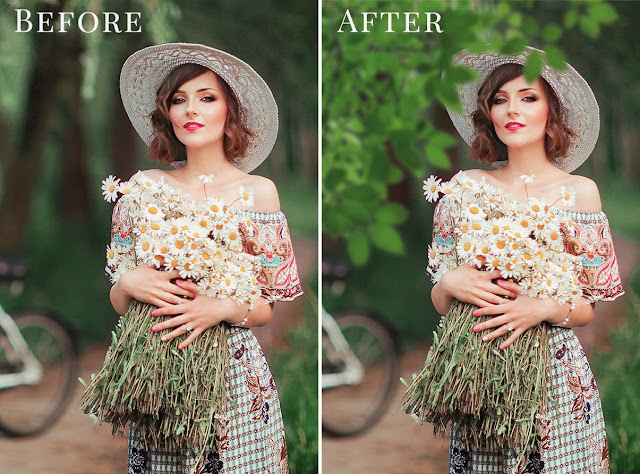
Autumn Leaves Rain Maple PNG Layers Free Download down in a mesmerizing display of nature’s beauty. Maple trees shed their foliage in layers of red, orange, and gold, creating a colorful carpet on the ground. The crisp air and the rustling of leaves evoke feelings of nostalgia and tranquility, making autumn a beloved season cherished by many. Create falling autumn leaves pictures with your own text using these prepared transparent PNG files and Photoshop documents. The 3000 x 2234 pixel files not only allow use for web, but are great for printing applications too. In case you own Photoshop CS5, CS6 or CC, you can also use the included layered and fully prepared PSD files.Umbrella Bundle PNG Pack 2Autumn Leaves Rain Maple PNG Layers

Download the File Easily From the Download Link Given Below

Password is : dgpik.com

Download dgpik

How to use Png in Photoshop

Using PNG files in Photoshop is a straightforward process. Follow the steps below:

Step 1: Open Photoshop Launch Adobe Photoshop on your computer. If you don’t have Photoshop installed, you will need to download and install it before proceeding.

Step 2: Create a New Document (optional) If you want to create a new document in Photoshop to work with your PNG file, you can do so by going to File > New. This will open the New Document dialog box where you can specify the dimensions, resolution, and other settings for your new document. Click OK to create the new document.

Step 3: Open PNG File To open a PNG file in Photoshop, go to File > Open. This will bring up the Open dialog box. Browse to the location where your PNG file is stored, select the file, and click the Open button.

Step 4: Edit PNG File Once the PNG file is opened in Photoshop, you can edit it using various tools and features available in Photoshop, such as layers, brushes, filters, and more. You can make adjustments to the image, apply effects, add text, or make any other changes you desire.

Step 5: Save PNG File After editing the PNG file in Photoshop, you will need to save your changes. To do this, go to File > Save As. In the Save As dialog box, specify the location where you want to save the edited PNG file, choose PNG as the file format from the drop-down menu, and click the Save button.

That’s it! You have successfully used a PNG file in Photoshop, made edits to it, and saved your changes.


Share This Article
Facebook Twitter Copy Link Print

Popular Posts

2025 One Click Pro 4.8 & Album Quicker 6.8
Album Design Software
The Crystalline Collection Photoshop Action Free
The Crystalline Collection Photoshop Action
Photo Effect
THE FLORA COLLECTION Photoshop Action
The Flora Collection Photoshop Action
Photo Effect
THE WANDERLUST COLLECTION Photoshop Action
The Wanderlust Collection Photoshop Action
Photo Effect
THE ROYAL COLLECTION Photoshop Action
The Royal Collection – Photoshop Action Preset
Photo Effect

Categories

  • 12×36 Spread Design
  • 12×36 Templates
  • 16×24 Album Design
  • Adobe Photoshop Tutorial
  • Album Design
  • Album Design Software
  • Album DM Pack
  • Alphabet Letters
  • Anniversary Gifts
  • Artistic Editing
  • Baby Album PSD
  • Baby Photography
  • Backgrounds
  • Banners
  • Birthday Album PSD
  • Birthday Collage
  • Birthday Design
  • Birthday Templates
  • Branding
  • Business Card Psd
  • Camera Raw Assets
  • Camera Raw Presets
  • Camera Raw Tools
  • Cinematic Design
  • Clip Part
  • Close-up Designs
  • Collage Design
  • Creative Design
  • Digital Assets
  • Digital Backgrounds
  • Digital Bundle
  • Digital Downloads
  • Digital Invitations
  • Digital Products
  • Digital Stationery
  • Digital Studio Tools
  • Double Exposure PSD
  • Facebook Covers
  • Floral Album Design
  • Flyers
  • Fonts
  • Format Design
  • Gift Items
  • Graphic Design
  • Graphic Design Assets
  • ID Card Design
  • Illustrator Files
  • Indian Wedding Designs
  • Indian Wedding Vidhi
  • Inner Sheet Templates
  • Instagram Templates
  • Invitation Branding
  • Kids Album Design
  • Kids Modeling PSD
  • Kids Photography
  • Kids Studio Design
  • Large Format Designs
  • Layer Styles
  • Lettering Font Png
  • Lightroom Presets
  • Logo Design
  • LUTs
  • Marathi Wedding PSD
  • Mobile Invitations
  • Mug Design PSD
  • Photo Collage Frame
  • Photo Effect
  • Photo Frame PSD
  • Photo Frames
  • Photo Overlays
  • Photography Assets
  • Photography Automation
  • Photography Marketing
  • Photography Presets
  • Photoshop Actions
  • Photoshop Add-ons
  • Photoshop Brushes
  • Photoshop Gradients
  • Photoshop Plugins
  • Photoshop Plugins/Panel
  • Photoshop Shapes
  • Photoshop Templates
  • Photoshop Tools
  • Photoshop Video Tutorial
  • PNG Files
  • Portfolio Packs
  • Portrait Photography
  • Portrait Tools
  • Pre-Wedding PSD
  • Premium Prouduct
  • Psd Files
  • Psd Mockup
  • Save the Date
  • Social Media Design
  • Software
  • Stock Photo
  • Studio Background
  • Studio Backgrounds
  • Sublimation Printing
  • Text Effects
  • Textures
  • Transitions Pack
  • Uncategorized
  • Vector Files
  • Wedding Album Inner PSD
  • Wedding Album PSD
  • Wedding Cover PSD
  • Wedding Design
  • Wedding Editing
  • Wedding Editing Tools
  • Winter Graphics Bundle

You Might Also Like

15 Glitter Effect Photo Overlays

15 Glitter Effect Photo Overlays

Photo Overlays
DREAM - A Leaf Font

DREAM – A Leaf Font Pack Free Download

Clip Part
Under Magnolia Photo Overlays set

Under Magnolia Photo Overlays set

Photo Effect
Makeup Keychain SVG PNG Bundle

Makeup Keychain SVG PNG Bundle

Clip Part
© 2016-2025 All rights reserved DGPik.com
  • Contact us
  • DMCA
  • Privacy Policy
  • Terms and Conditions
Welcome Back!

Sign in to your account

Username or Email Address
Password

Lost your password?