58 Funny Animals Soap Bubbles Overlay Free Download Do your family photos lack sprightliness, plaything and merry-making? Soap bubbles are real leaders in creating a positive mood. Maybe that’s why even an adult cannot help a smile at the sight of these air soap balls.You Can Also Download 100 Bubbles Photoshop Overlays
The common air in the soapy shell is able to provoke a smile, children’s laughter and the feeling of absolute happiness! Overlays We offer you a pack containing not just regular bubble overlays, but bubbles in the shape of amusing animal figurines and sparkling colors that will definitely enliven your scenes!You Can Also Download 12 Soap Bubbles Photo Overlays
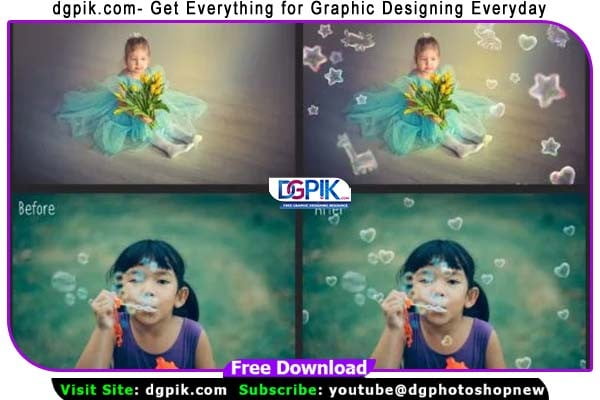
You can easily insert animal bubbles into your routine pictures and choose the desired shapes and colors. What remains is positioning and resizing. Of course, you can also use selected areas of the photos and choose single shapes of bubbles. In order to find the right one for your picture, you have 20 JPG overlays at your disposal.You Can Also Download 122 Soap Bubbles Photo Overlays
Elephants, giraffes, dogs, bunnies, teddy bears, hearts and stars – everything you need for a holiday atmosphere.
See what you will be able to do
Below you can find Preset Power Examples from each Package


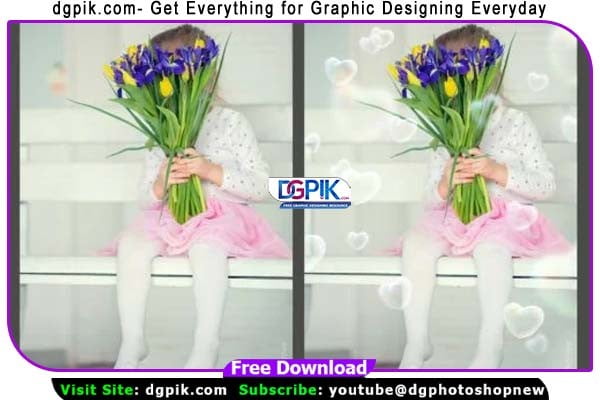
DETAILS:
20 high resolution (2700 x 2800 px – 300 dpi – JPEG) Compatible with any software that allows you to work with layers ( Photoshop, Photoshop Elements, Paint Shop Pro, etc.) Please read instructions.
20 PNG files with transparent backgrounds. (2700 x 2800 px – 300 dpi)
18 Brushes for Adobe Photoshop
Compatible with any software that allows you to work with layers ( Photoshop, Photoshop Elements, Paint Shop Pro, PicMonkey, Gimp and etc.)
Download the File Easily From the Download Link Given Below
Password is: dgpik.com
How to Use Overlays
Using overlays in Photoshop is a great way to add visual effects, textures, or elements to your images. Here’s a step-by-step guide on how to use overlays in Photoshop:
- Open Photoshop: Launch Adobe Photoshop on your computer.
- Open your image: Go to “File” > “Open” and select the image you want to work with. Alternatively, you can drag and drop the image into the Photoshop workspace.
- Add the overlay: Locate the overlay image or texture you want to use. This can be a graphic, texture, light leak, or any other image you’d like to overlay onto your original image. Open the overlay image in Photoshop.
- Select and copy the overlay: Use the selection tools in Photoshop, such as the Magic Wand, Quick Selection, or Lasso tool, to select the area of the overlay image that you want to use. Once you’ve made the selection, press Ctrl+C (Windows) or Command+C (Mac) to copy the overlay to your clipboard.
- Paste the overlay onto your image: Go back to your original image and press Ctrl+V (Windows) or Command+V (Mac) to paste the overlay onto the image. Photoshop will create a new layer for the overlay.
- Adjust the overlay position and size: Use the Move tool (shortcut V) to reposition the overlay on your image. You can also resize the overlay by selecting the Transform tool (shortcut Ctrl+T or Command+T) and dragging the corners while holding the Shift key to maintain proportions.
- Blend the overlay with the image: In the Layers panel, adjust the blending mode and opacity of the overlay layer to achieve the desired effect. Experiment with different blending modes like Overlay, Soft Light, Multiply, or Screen, depending on the look you want to achieve. Lowering the opacity of the overlay layer can also help to make the effect more subtle.
- Refine the overlay: If needed, you can further refine the overlay by applying adjustment layers or filters. For example, you can use the Hue/Saturation adjustment layer to change the color of the overlay or the Gaussian Blur filter to soften its edges.
- Save your image: Once you’re satisfied with the overlay effect, go to “File” > “Save” or “Save As” to save your image in the desired format.
That’s it! You’ve successfully used an overlay in Photoshop to enhance your image. Remember to experiment and try different overlays and blending modes to achieve the desired result.