
The 12 Pastel Digital Paper Pack Overlay Free Download offers a collection of delightful backgrounds for various creative projects. With soft and soothing hues, these digital papers add a touch of elegance to designs. Overlay Perfect for scrap booking, invitations, or digital artwork, they provide a charming and versatile palette to enhance your creations.You Can Also Download 12 Outer Space Digital Paper Overlay

Details:
12 digital papers 12 x 12 inch (3600 x 3600 px) – 300 dpi – jpg file format
See what you will be able to do
Below you can find Preset Power Examples from each Package.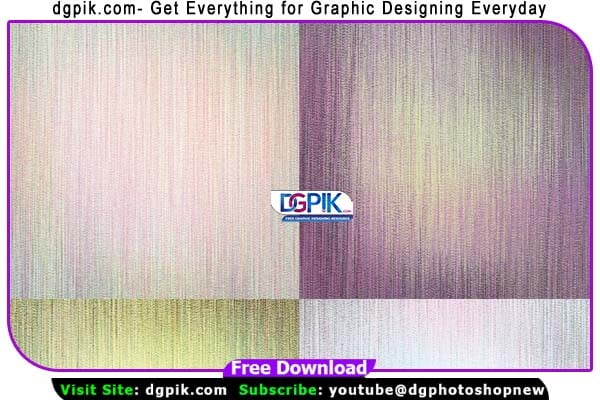
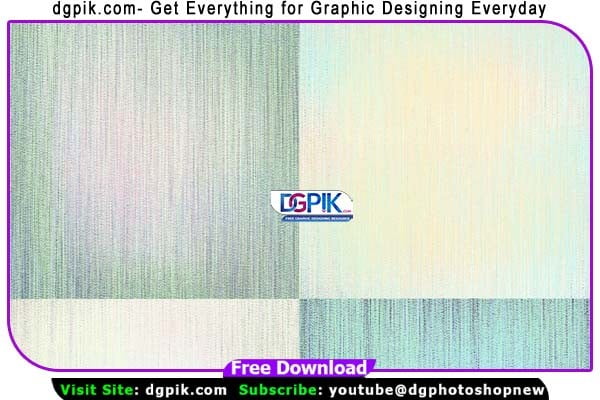
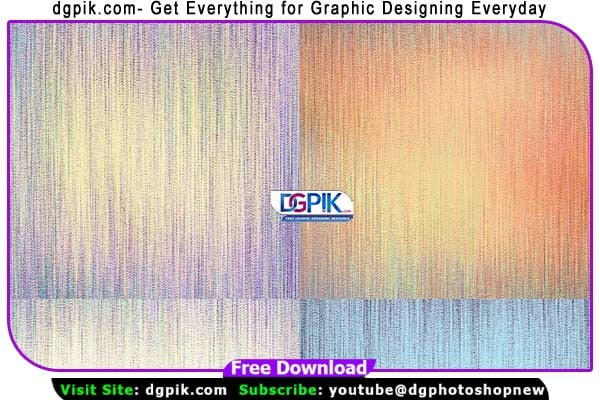
Download the File Easily From the Download Link Given Below
Password is: dgpik.com
How to Use Photoshop Overlays
Using overlays in Photoshop can add creative effects and enhance your images. Here’s a step-by-step guide on how to use overlays in Photoshop:
- Open Photoshop: Launch Adobe Photoshop on your computer and open the image you want to edit.
- Find an Overlay: You can either create your own overlay or find pre-made overlays online. There are many websites that offer free or paid overlays in various styles, such as light leaks, textures, bokeh effects, and more. Download the overlay file to your computer.
- Open the Overlay: In Photoshop, go to “File” > “Open” and locate the downloaded overlay file on your computer. Open the overlay image in Photoshop. It will appear as a separate document.
- Select and Copy the Overlay: Use the Move Tool (shortcut: V) to select the overlay image. Click and drag the overlay onto your main image. Press Ctrl/Cmd + A to select the entire overlay image, then press Ctrl/Cmd + C to copy it.
- Paste the Overlay: Go back to your main image document, click on its tab in Photoshop to make it active, and press Ctrl/Cmd + V to paste the overlay. The overlay will appear as a new layer on top of your image in the Layers panel.
- Adjust Overlay Placement and Size: Use the Move Tool to position the overlay layer where you want it. You can resize the overlay by pressing Ctrl/Cmd + T to activate the Transform tool. Drag the corner handles while holding Shift to maintain the aspect ratio. Press Enter/Return when you’re done resizing.
- Blend Modes and Opacity: Experiment with different blend modes and opacity settings for the overlay layer to achieve the desired effect. The Blend Mode dropdown is located at the top of the Layers panel. Common blend modes for overlays are Screen, Multiply, Overlay, Soft Light, and Lighten, but feel free to try different options. Adjust the Opacity slider to control the overall transparency of the overlay.
- Layer Mask (Optional): If you want to apply the overlay selectively to specific areas of the image, you can add a layer mask to the overlay layer. Click on the overlay layer in the Layers panel, then click on the Layer Mask icon at the bottom of the panel (a square with a circle inside). Use the Brush Tool (shortcut: B) with black or white color to paint on the mask, revealing or hiding parts of the overlay.
- Additional Adjustments: You can further refine the appearance of the overlay by using adjustment layers or applying filters to the overlay layer. Experiment with options like levels, curves, saturation, and more to achieve the desired look.
- Save and Export: Once you’re satisfied with the overlay effect, save your image by going to “File” > “Save” or “Save As.” Choose the desired file format (such as JPEG or PNG) and save it to your computer.
That’s it! You have successfully used an overlay in Photoshop to enhance your image. Feel free to experiment with different overlays, blend modes, and adjustments to create unique effects.