DGPikDGPik
  • Wedding Album PSD
  • Photoshop Add-ons
    • Photoshop Plugins/Panel
    • Photoshop Gradients
    • Camera Raw Presets
    • Photoshop Brushes
    • Photoshop Actions
    • Layer Styles
  • Lightroom Presets
  • Free Mockups
  • Backgrounds
  • Photo Overlays
  • LUTs
DGPikDGPik
Search
Follow US
Copyright © 2014-2023 Ruby Theme Ltd. All Rights Reserved.
Layer StylesPhotoshop Add-onsPsd FilesPsd MockupText Effects

50 Modern Text Styles For Photoshop Free Download

Published February 25, 2023
SHARE

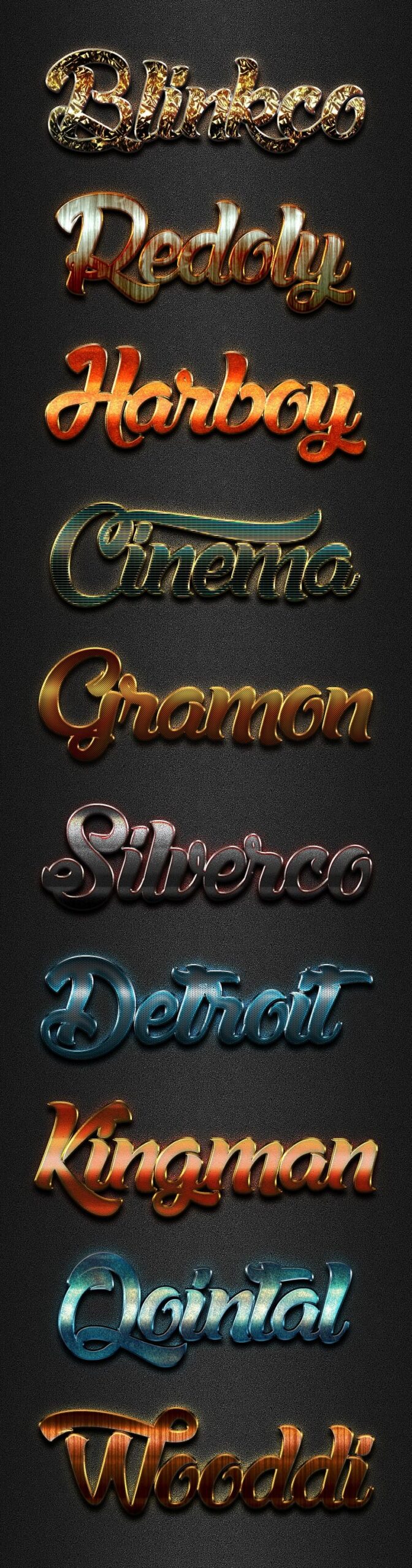
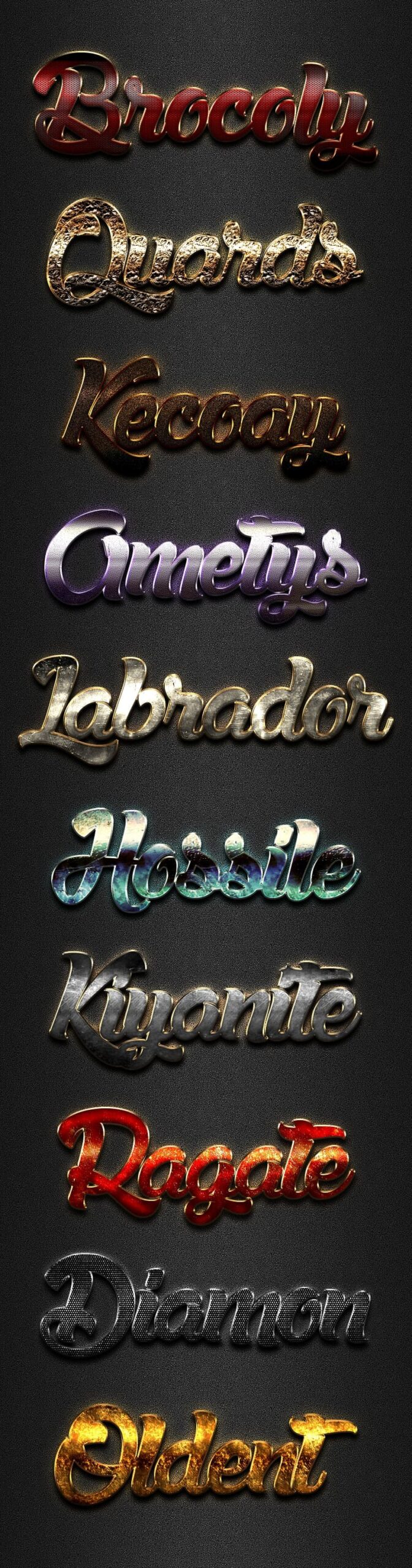
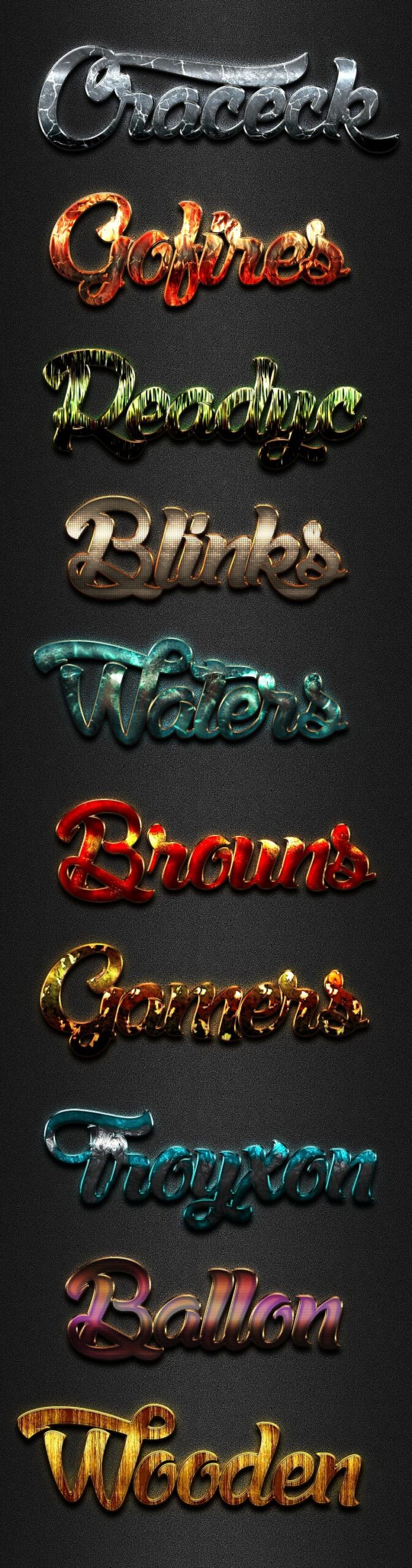
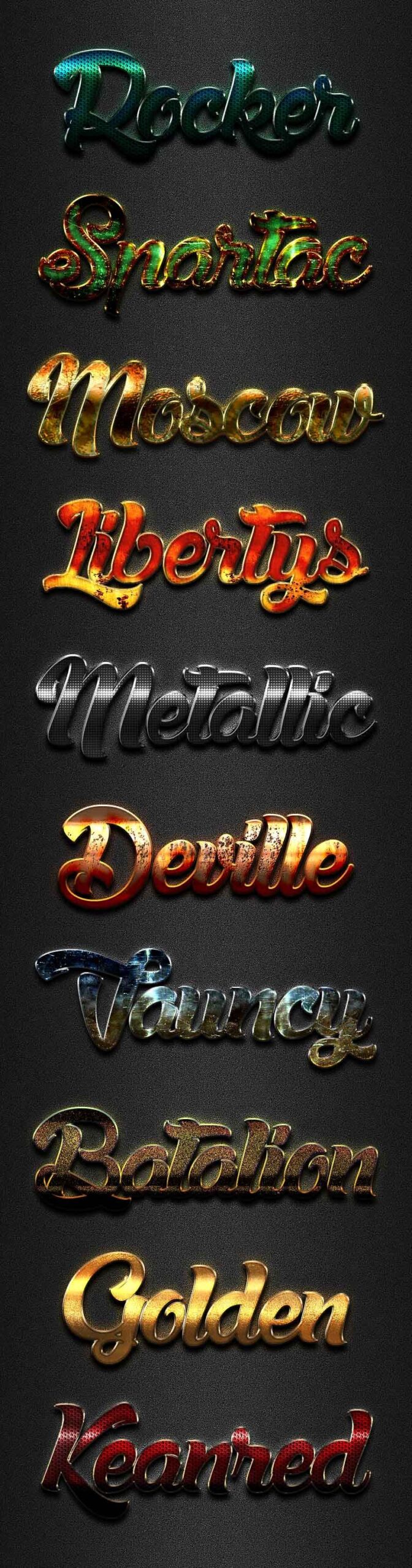
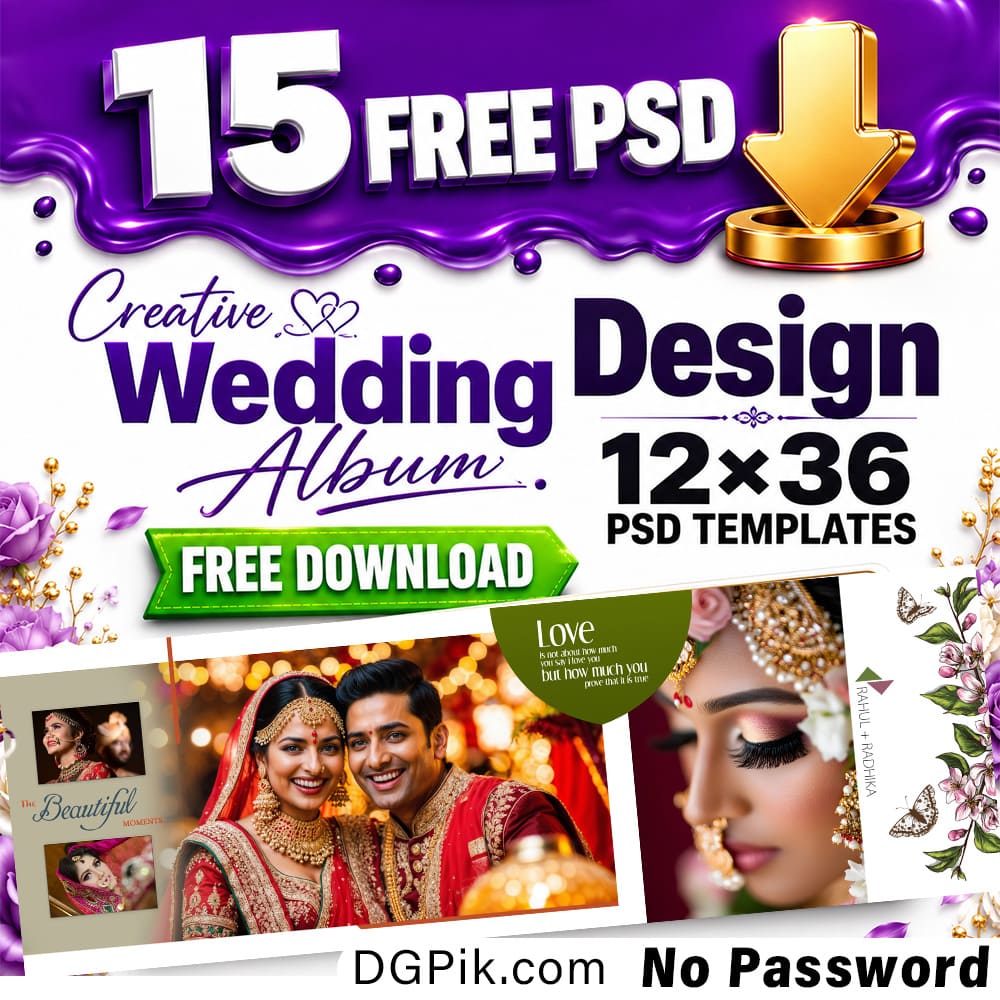
Here in this post you’ll get free download link of 50 Modern Styles For Photoshop Free Download compress file from below. It is most beautiful Wedding Album PSD within high resolution pixel quality.

50 Modern Styles For Photoshop

How To Download & Use 50 Modern Styles For Photoshop Free Download

Dear viewer! if you don’t know about of using this Free 50 Modern Styles For Photoshop so you have need to watch below complete video tutorial and learn how to use this PSD file for your editing purpose.

File Included | 20

File Type | .PSD.Fonts.asl

File Size: 45. MB

Password is: dgpik.com

Check Demo and Download now
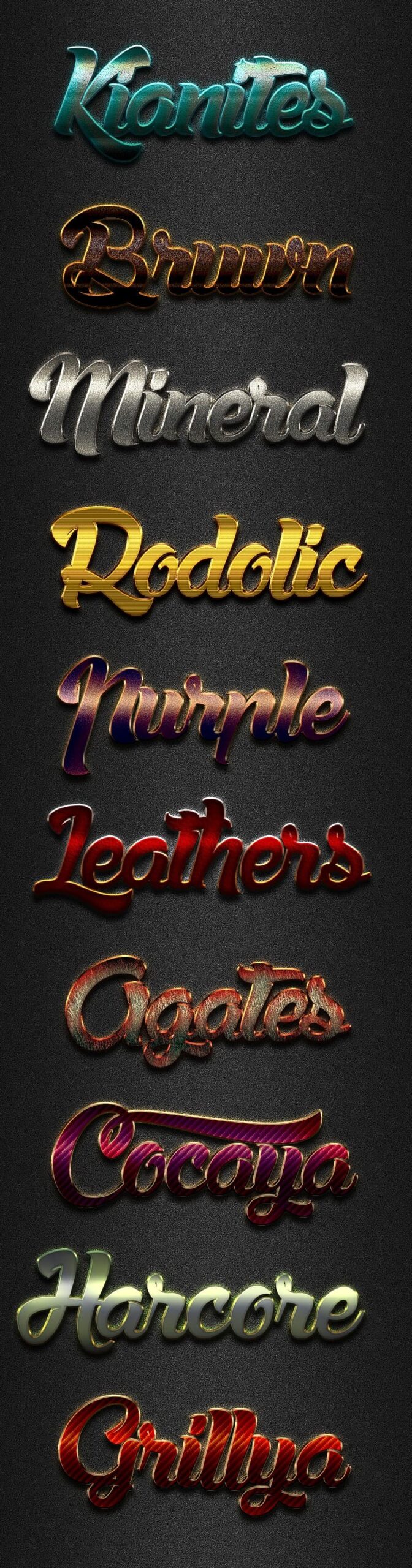
10 Modern Styles Pack 01Download dgpik

10 Modern Styles Pack 02Download dgpik

10 Modern Styles Pack 03Download dgpik

10 Modern Styles Pack 04Download dgpik

10 Modern Styles Pack 05Download dgpik

All Fonts PackDownload dgpik

How to Edit Text Effect Psd

Editing a text effect PSD (Photoshop Document) file can be a bit different than editing a regular PSD file because the text effects are often created using specific layer styles, filters, and other effects. Here are some steps you can follow to edit a text effect PSD:

  1. Open the PSD file: Open the PSD file in Adobe Photoshop by double-clicking on the file or by going to “File” > “Open” and selecting the PSD file.
  2. Find the text layer: Locate the text layer that you want to edit in the Layers panel. The text layer should be named and grouped with other layers that make up the text effect.
  3. Edit the text: Double-click on the text layer to select the text and edit it as desired. You can change the font, size, color, and other text properties.
  4. Adjust the layer styles: To change the appearance of the text effect, you may need to adjust the layer styles applied to the text layer. To do this, click on the layer style in the Layers panel to open the Layer Style dialog box. Here you can make adjustments to the layer styles, such as changing the gradient or shadow effect.
  5. Edit other layers: If the text effect PSD file has other layers that contribute to the effect, you may need to edit those layers as well. For example, there may be a background layer or a layer that adds a texture to the text effect.
  6. Save your changes: Once you have made your edits, save the PSD file by going to “File” > “Save” or “File” > “Save As” if you want to save a copy of the edited file.

By following these steps, you can edit a text effect PSD file in Adobe Photoshop and customize the text to your liking.


Share This Article
Facebook Twitter Copy Link Print

Popular Posts

Vol2 Save The Date PSD Design
Digital Products
The Crystalline Collection Photoshop Action Free
The Crystalline Collection Photoshop Action
Photo Effect
THE FLORA COLLECTION Photoshop Action
The Flora Collection Photoshop Action
Photo Effect
THE WANDERLUST COLLECTION Photoshop Action
The Wanderlust Collection Photoshop Action
Photo Effect
THE ROYAL COLLECTION Photoshop Action
The Royal Collection – Photoshop Action Preset
Photo Effect

Categories

  • 12×36 Templates
  • 16×24 Album Design
  • Adobe Photoshop Tutorial
  • Album Design
  • Alphabet Letters
  • Baby Album PSD
  • Backgrounds
  • Banners
  • Birthday Design
  • Branding
  • Business Card Psd
  • Camera Raw Presets
  • Clip Part
  • Close-up Designs
  • Creative Design
  • Digital Assets
  • Digital Backgrounds
  • Digital Bundle
  • Digital Downloads
  • Digital Invitations
  • Digital Products
  • Digital Stationery
  • Facebook Covers
  • Flyers
  • Fonts
  • Gift Items
  • Graphic Design
  • Graphic Design Assets
  • ID Card Design
  • Illustrator Files
  • Indian Wedding Designs
  • Indian Wedding Vidhi
  • Inner Sheet Templates
  • Instagram Templates
  • Invitation Branding
  • Kids Photography
  • Large Format Designs
  • Layer Styles
  • Lettering Font Png
  • Lightroom Presets
  • Logo Design
  • LUTs
  • Marathi Wedding PSD
  • Mobile Invitations
  • Mug Design PSD
  • Photo Collage Frame
  • Photo Effect
  • Photo Frames
  • Photo Overlays
  • Photography Assets
  • Photography Automation
  • Photography Marketing
  • Photoshop Actions
  • Photoshop Add-ons
  • Photoshop Brushes
  • Photoshop Gradients
  • Photoshop Plugins/Panel
  • Photoshop Shapes
  • Photoshop Templates
  • Photoshop Tools
  • Photoshop Video Tutorial
  • PNG Files
  • Portrait Photography
  • Portrait Tools
  • Pre-Wedding PSD
  • Premium Prouduct
  • Psd Files
  • Psd Mockup
  • Save the Date
  • Social Media Design
  • Software
  • Stock Photo
  • Studio Background
  • Studio Backgrounds
  • Sublimation Printing
  • Text Effects
  • Textures
  • Transitions Pack
  • Uncategorized
  • Vector Files
  • Wedding Album Inner PSD
  • Wedding Album PSD
  • Wedding Design
  • Winter Graphics Bundle

You Might Also Like

Anaglyph 3D Photoshop Actions

Anaglyph 3D Photoshop Actions

Photo Effect
12 Stamp Cloud Brushes for Photoshop Vol 5

Clouds Stamp Brushes Vol.5

Photoshop Add-ons
create Customized Photo Frame Psd

Wedding Anniversary Customized Photo Frame in Photoshop

Adobe Photoshop Tutorial

NEW Super Magic PSD Automatic Wedding ALBUM PSD 650+

Premium Prouduct
© 2016-2025 All rights reserved DGPik.com
  • Contact us
  • DMCA
  • Privacy Policy
  • Terms and Conditions
Welcome Back!

Sign in to your account

Username or Email Address
Password

Lost your password?