DGPikDGPikDGPik
  • Wedding Album PSD
  • Photoshop Add-ons
    • Photoshop Plugins/Panel
    • Photoshop Gradients
    • Camera Raw Presets
    • Photoshop Brushes
    • Photoshop Actions
  • Backgrounds
  • Photo Overlays
DGPikDGPik
Search What You Need
Follow US
Copyright © 2014-2023 Ruby Theme Ltd. All Rights Reserved.
Photo EffectPhoto Overlays

Sunlight Shadows 40 Photoshop Overlays

Published April 11, 2023
SHARE

Sunlight Shadows 40Photoshop Overlays Free Download are a set of creative tools that add realistic and dynamic lighting effects to your photos. They include various styles, angles, and intensities, allowing you to enhance your images with stunning sunlit shadows that bring depth and drama to your compositions. Perfect for photographers, designers, and digital artists seeking to elevate their visuals to the next level. 160 Color Smoke Photo Overlays
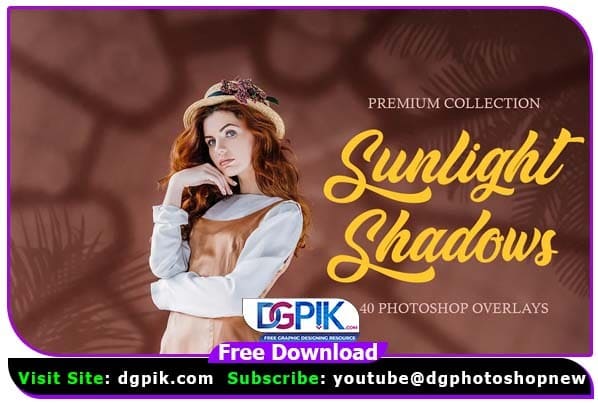
Sunlight Shadows Photoshop Overlays

INCLUDES:

• 40 Photoshop Overlays

• High Resolution (up to 6000*4000px 300 dpi)

• File Type – PNG

• Photoshop Actions compatible with Photoshop CS3 – CC2017

• Fully compatible with JPG, TIFF, PNG and RAW Images (All Formats)

• Work on Mac and PC

If you want you can also Download. Photoshop Overlays

Download the File Easily From the Download Link Given Below

Password is : dgpik.com

Download dgpik

How to Use Photoshop Overlays

Using Photoshop overlays is a creative and simple way to enhance your photos. Here’s a step-by-step guide on how to use Photoshop overlays:
  1. Open your image in Photoshop.
  2. Create a new layer above your image where you want to apply the overlay. Go to “Layer” > “New” > “Layer” or use the shortcut Ctrl+Shift+N (Cmd+Shift+N on Mac).
  3. Import the overlay image into Photoshop. You can do this by dragging and dropping the overlay file onto your Photoshop canvas or by going to “File” > “Place Embedded” or “Place Linked” and selecting the overlay image from your file directory.
  4. Resize and position the overlay as desired. Use the transform tools (Ctrl+T or Cmd+T) to scale, rotate, and move the overlay to the desired location on your image.
  5. Adjust the opacity and blending mode of the overlay layer to blend it seamlessly with your image. You can find these settings in the Layers panel, which is typically located on the right side of the Photoshop interface. Experiment with different blending modes and opacity levels to achieve the desired effect.
  6. Optional: Use layer masks to further refine the overlay. Layer masks allow you to selectively hide or reveal parts of the overlay layer. You can create a layer mask by selecting the overlay layer and clicking on the “Add Layer Mask” button at the bottom of the Layers panel. Use a brush tool with black or white color to paint on the layer mask and reveal or hide parts of the overlay as needed.
  7. Make final adjustments to your image, such as adjusting contrast, saturation, and sharpness, to ensure a cohesive look.


BUY NEW PRODUCTS

Auto-Swap-Photo-One-Click-Auto-Fill-Action-for-dgpik

Auto Swap Photo + One Click Auto Fill Action FREE

One Click Ai Album 2026 automatic wedding album designing software

Best Automatic Wedding Album Designing Software One Click Ai Album 2026

Free 15 Creative 12x36 Wedding Album PSD Templates

Free 15 Creative Wedding Album Design 12×36 PSD Templates

```

New 100 Creative Collage PSD Pack 2026 | With Free Photoshop Panel With Fonts

https://www.youtube.com/watch?v=Egyjjf7zvBM

SUBSCRIBE FOR MORE FREE PSD

Share This Article
Facebook Twitter Copy Link Print

Popular Posts

Free 20 Wedding Album Cover PSD Designs For Bride and Groom
FREE Files
The Crystalline Collection Photoshop Action Free
The Crystalline Collection Photoshop Action
Photo Effect
THE FLORA COLLECTION Photoshop Action
The Flora Collection Photoshop Action
Photo Effect
THE WANDERLUST COLLECTION Photoshop Action
The Wanderlust Collection Photoshop Action
Photo Effect
THE ROYAL COLLECTION Photoshop Action
The Royal Collection – Photoshop Action Preset
Photo Effect

SUBSCRIBE FOR MORE FREE PSD

Categories

  • 16×24 Album Design
  • Alphabet Letters
  • Backgrounds
  • Birthday Album Design PSD
  • Business Card Psd
  • Camera Raw Presets
  • Clip Part
  • Facebook Covers
  • Flyers
  • Fonts
  • FREE Files
  • Instagram Templates
  • Lettering Font Png
  • Lightroom Presets
  • Logo Design
  • LUTs
  • Mug Design PSD
  • Photo Collage Frame
  • Photo Effect
  • Photo Frames
  • Photo Overlays
  • Photoshop Actions
  • Photoshop Add-ons
  • Photoshop Brushes
  • Photoshop Gradients
  • Photoshop Plugins/Panel
  • Photoshop Shapes
  • PNG Files
  • Premium Prouduct
  • Psd Files
  • Psd Mockup
  • Save The Date PSD Design
  • Software
  • Stock Photo
  • Studio Backgrounds
  • Text Effects
  • Textures
  • Vector Files
  • Wedding Album Cover
  • Wedding Album Inner PSD
  • Wedding Album PSD

You Might Also Like

100 Silver Lights Photo Overlays Pack

100 Silver Lights Photo Overlays Pack

Photo Effect
Vintage Photoshop ActionsJPG

Vintage Photoshop Actions

Photo Effect
21 Firework Photo Overlays

21 Firework Photo Overlays

Photo Effect
DARK MOOD Photoshop ACTION

Dark Mode Photoshop Action

Photo Effect
© 2016-2025 All rights reserved DGPik.com
  • DGPIk Pro
  • Contact us
  • DMCA Policy
  • Privacy Policy
  • Terms and Conditions
  • Disclaimer
Welcome Back!

Sign in to your account

Username or Email Address
Password

Lost your password?